
Download MediaLink – DLNA Mac to PS3 streaming software
Overview
MediaLink is a lightweight DLNA‑compliant media server designed to bridge the gap between macOS and the Sony PlayStation 3. While Apple devices are not native members of the Digital Living Network Alliance, MediaLink acts as a reliable file‑server that exposes your iTunes, iPhoto, and general media folders to any DLNA‑capable device on the same home network. Once installed on your Mac, the PS3 automatically discovers the MediaLink server, adds it to the XMB menu, and lets you browse music, photos, and videos just as you would with a native PS3 media app.
The latest release adds support for Turkish, Portuguese and Chinese subtitles, reads ID3 track numbers, and includes a compatibility mode that disables QuickTime duration scans to prevent hangs on problematic MPEG files. Users report smooth playback, accurate iTunes artwork, and fast thumbnail generation, positioning MediaLink as a strong alternative to competitors like Elgato’s EyeConnect. Though some .divx files may still be missed, the developers have pledged updates to broaden format recognition.
In short, MediaLink provides a secure, free‑to‑try solution for anyone who wants to stream their Mac’s multimedia library to a PS3 without purchasing expensive third‑party hardware.
Key Features of MediaLink
- Full DLNA server implementation for seamless discovery by PlayStation 3.
- Automatic indexing of iTunes, iPhoto, and user‑selected folders.
- Support for common audio (MP3, AAC, FLAC) and video codecs (MP4, MKV, AVI).
- Enhanced subtitle handling with Turkish, Portuguese, and Chinese language packs.
- ID3 tag reading for accurate track numbers and album ordering.
- Compatibility mode that disables QuickTime scans to prevent MPEG hangs.
- Low‑resource footprint – runs quietly in the background on macOS.
- Free download with optional paid upgrade for priority support.
- Regular updates that fix format‑specific bugs (e.g., .divx detection).
- Secure local network streaming – no data leaves your home.
Each of these features is aimed at delivering a frictionless streaming experience. MediaLink’s DLNA engine continuously advertises its presence, meaning the PS3 can reconnect automatically after a network reboot or a Mac sleep cycle. The built‑in iTunes library parser respects album art, genre tags, and playlists, presenting them in a familiar hierarchy on the PS3’s XMB interface.
Photo browsing is equally intuitive: thumbnails generate on‑the‑fly, and you can flip through albums just like on an iPhone. For video enthusiasts, the subtitle packs enable foreign‑language films to be enjoyed without external subtitle files, while the compatibility mode solves a common pain point where QuickTime would otherwise lock up on badly‑encoded MPEG streams. Overall, MediaLink’s feature set reflects a mature, community‑driven project that prioritizes reliability over flashiness.
Installation, Setup, and System Compatibility
Getting MediaLink up and running is straightforward, even for users who are new to DLNA servers. Follow these steps:
- Visit the official MediaLink website and click the “Download for macOS” button. The installer is a signed .dmg file, ensuring a secure download.
- Open the .dmg, drag the MediaLink icon to your Applications folder, and launch the app. macOS may request permission to access your Music, Photos, and Network – grant these to allow full indexing.
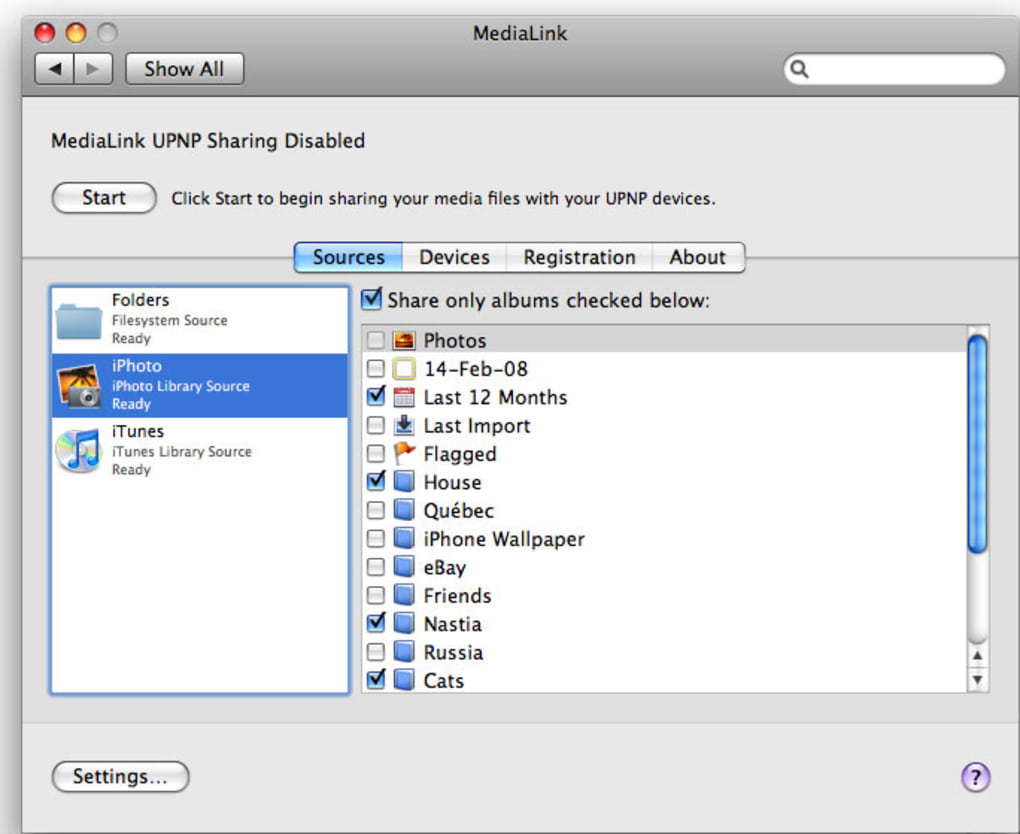
- Within the MediaLink preferences window, add the folders you wish to share (iTunes Library, iPhoto Library, or any custom media folder). Click “Rescan” to let the server build its index.
- Enable “Compatibility Mode” if you experience playback issues with MPEG files. This option disables QuickTime duration scans that can cause hangs.
- Make sure your Mac and PS3 are on the same Wi‑Fi or Ethernet network. Turn on the PS3’s “Media Server” setting under Network → Media Server Settings.
- On the PS3, navigate to the “Video” or “Music” category in the XMB. MediaLink should appear as a server; select it to browse your shared content.
MediaLink officially supports macOS 10.9 (Mavericks) and later, including macOS 12 Monterey and macOS 13 Ventura. The application runs natively on Intel‑based Macs as well as Apple Silicon (M1/M2) thanks to universal binaries. No additional drivers or codecs are required; the app leverages the system’s built‑in QuickTime framework for transcoding when needed.
After the initial setup, MediaLink runs quietly in the menu bar, monitoring your libraries for changes. If you add new songs or photos, the server automatically updates its index without requiring a manual refresh. The lightweight design ensures that CPU and RAM usage stay low, leaving resources free for other tasks on your Mac. Overall, the installation process is designed to be as painless as possible, letting you focus on streaming rather than troubleshooting.
Pros, Cons, and Frequently Asked Questions
Pros
- Reliable DLNA discovery – PS3 connects instantly.
- Accurate iTunes artwork and playlist handling.
- Low system impact; runs smoothly on older Macs.
- Free core version with optional paid support.
- Subtitle language packs broaden video compatibility.
Cons
- .divx files may not be detected in the current release.
- Image quality in photo mode can be slightly lower than EyeConnect.
- No native Windows client – Mac‑only solution.
- Limited advanced transcoding options; relies on QuickTime.
- Occasional need to manually rescan after large library changes.
Frequently Asked Questions
Do I need a separate DLNA device to use MediaLink?
No. MediaLink itself acts as the DLNA server. Any DLNA‑compatible device on your network—such as a PlayStation 3, smart TV, or game console—can discover and stream content directly from your Mac.
Can MediaLink stream live TV or online services?
MediaLink is designed for local media libraries only. It does not support live TV, IPTV, or streaming from services like Netflix or Spotify.
Is there a limit to the size of my iTunes library?
There is no hard‑coded limit. MediaLink indexes files on demand, so even large libraries (tens of thousands of tracks) are handled efficiently, though the initial scan may take a few minutes.
How does MediaLink handle DRM‑protected content?
DRM‑protected songs (e.g., iTunes Store purchases) will appear in the library but cannot be streamed to the PS3, as the device lacks the necessary decryption keys. Non‑DRM files stream without issue.
Is the software safe to download?
Yes. MediaLink is signed by a verified developer, distributed via HTTPS, and does not contain adware or telemetry. All streaming stays within your local network.
Conclusion – Start Streaming Today
MediaLink delivers a robust, low‑cost solution for anyone who wants to share a Mac‑based multimedia collection with a PlayStation 3. Its DLNA compliance, solid iTunes integration, and recent subtitle enhancements make it a compelling alternative to pricier hardware bridges. While the lack of .divx support and the Mac‑only platform may be minor drawbacks, the overall stability, ease of installation, and free entry point outweigh those concerns for most home‑theater enthusiasts. If you’re ready to turn your Mac into a full‑featured media hub, download MediaLink now and enjoy seamless playback across your living‑room setup. Don’t forget to enable Compatibility Mode if you encounter MPEG hiccups, and keep an eye on future updates for expanded format support.







